Auto-Delegation (FP111 2)
Problem Statement
Users often need to delegate their tasks during periods of absence, such as mandatory long leaves. With the increasing use of autocases in OSPROV, there's a need for a way to automatically delegate actions to another user for a specific timeframe.
Feature Description
Introduction
We're excited to announce that users can now automatically delegate their action queues to another user within a specific timeframe. This helps to ensure continuity of work during leaves or absences, making team collaboration more efficient.
How to Set Up Auto-Delegation
- Navigate to 'My Account' from the top-right profile menu

- Select the Auto Delegation section to manage your settings
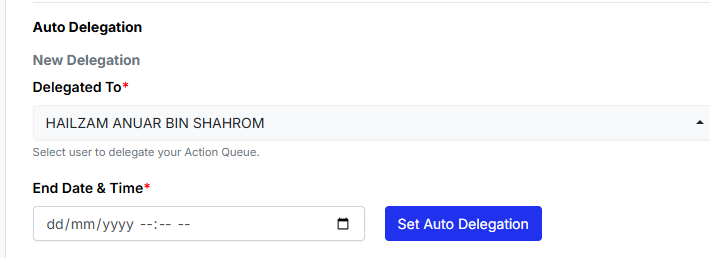
- To create a new auto-delegation:
- Select a user from the 'Delegated To' dropdown
- Choose the End Date & Time for delegation
- Click 'Set Auto Delegation'
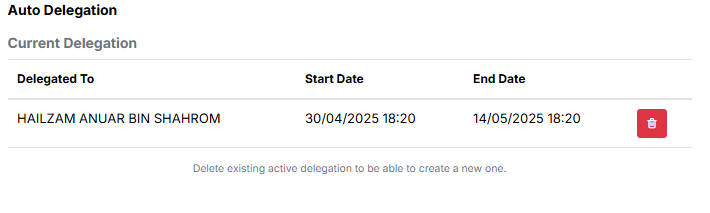
Note: You must delete any existing delegation before creating a new one.
Viewing Current Active Delegation
A summary of the active auto delegation is shown on the same page, including:
- Who the actions are delegated to
- Start and end date of delegation
We'd love to hear your feedback on this new feature! Please share your experience or suggestions in the comments below.
Have questions about how to use Auto-Delegation? Contact our support team for assistance.